
 By
By The Late-Night Eye Strain Problem Nobody Talks About
A few years ago, I noticed something strange. After spending long hours writing articles, editing photos, and working on multiple screens, my eyes felt exhausted even when my monitor brightness seemed perfectly adjusted.
At first, I blamed my monitor. Then I blamed blue light. Eventually, I realized the real issue was my overall desk lighting.
That’s when I started experimenting with monitor light bars.
If you’ve been seeing these sleek lights clipped on top of computer screens and wondering whether they’re just another expensive desk accessory, you’re not alone. The good news is that monitor light bars can help reduce eye strain, but not for the reasons most people think.
Let’s break down five important facts that every programmer, student, gamer, and remote worker should know.
Fact #1: Monitor Light Bars Don’t “Save” Your Eyes
One of the biggest misconceptions I hear is that a monitor light bar somehow protects your eyesight.
That’s not really how it works.
A monitor light bar doesn’t improve your vision or prevent eye diseases. What it does is create a more balanced lighting environment around your workspace. When you’re staring at a bright monitor in a dark room, your eyes constantly adjust between different brightness levels.
That extra effort can lead to fatigue.
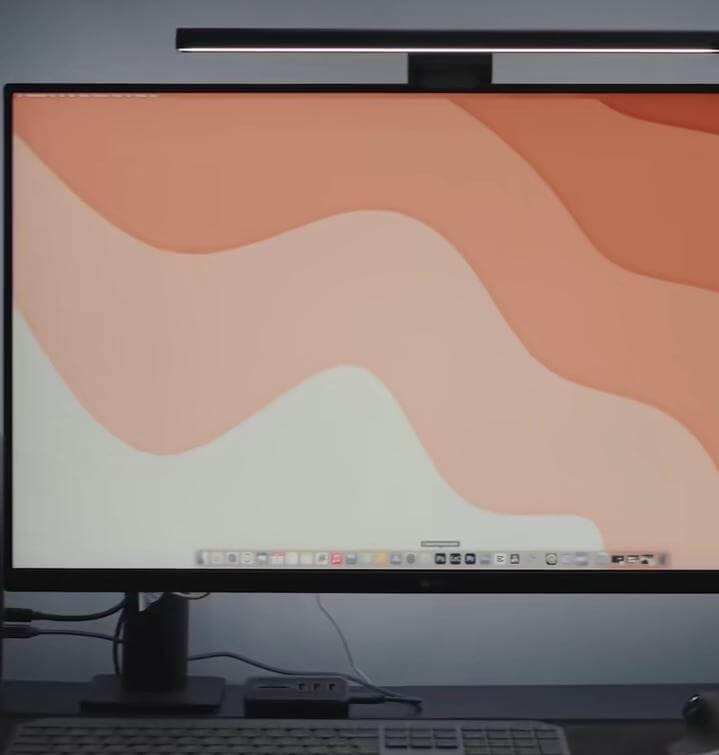
A monitor light bar reduces the contrast between your screen and the surrounding area, making the viewing experience more comfortable during long sessions.
The difference feels subtle at first, but after a full workday, many people notice significantly less discomfort.
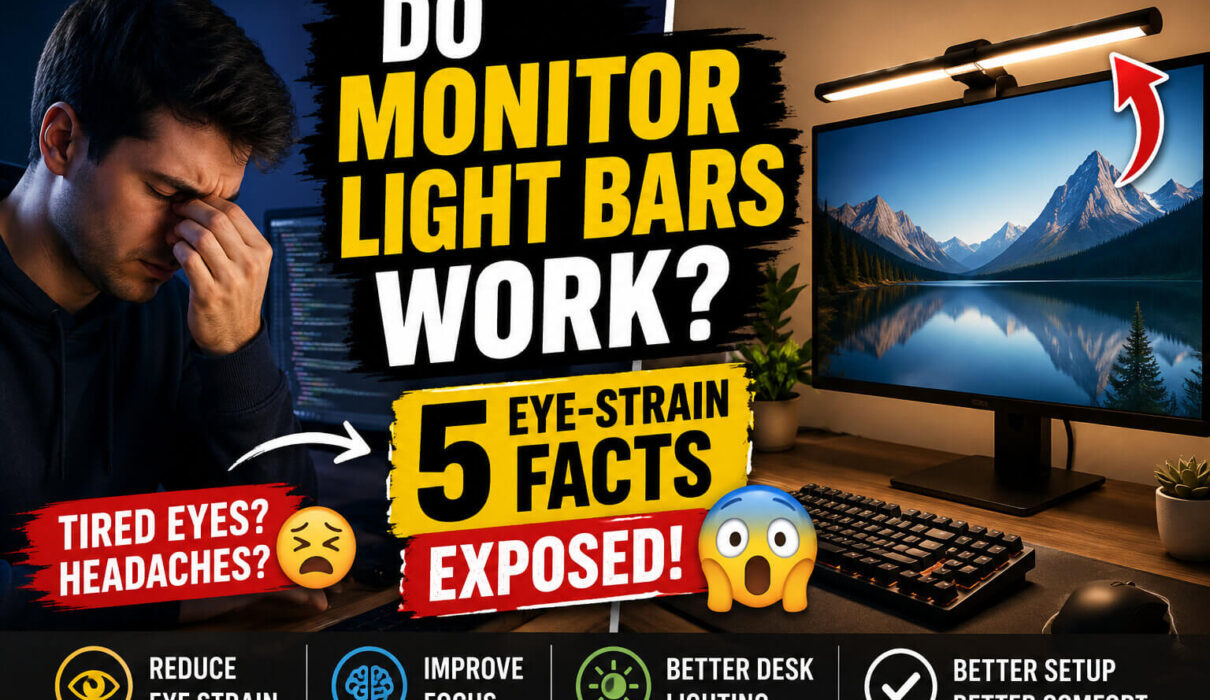
Fact #2: The Real Benefit Is Reduced Eye Strain
When I first tested a quality monitor light bar, I expected dramatic results overnight.
What I actually experienced was something much better: less fatigue at the end of the day.
Eye strain usually comes from several factors working together. Poor room lighting, screen glare, dry eyes, and long periods of focus all contribute to discomfort.
A monitor light bar helps by illuminating your keyboard, desk, and immediate workspace without shining directly into your eyes.
This creates a softer visual transition between your monitor and the rest of your environment.
If you spend six to ten hours daily in front of a screen, this small improvement can make a surprisingly noticeable difference.
Fact #3: Setup Matters More Than the Light Itself
I’ve seen people buy expensive monitor light bars and then complain that they don’t work.
Most of the time, the setup is the problem.
The light should shine downward onto your desk, not directly onto your monitor. If the beam reflects off the screen, you’ve created a glare problem instead of solving one.
The ideal setup keeps the light focused on your workspace while leaving the display itself free from reflections.
You should also match the brightness to your environment. A light bar that’s too bright can become just as uncomfortable as a dark room.
The goal isn’t maximum brightness. The goal is balance.
Fact #4: They Work Best for Programmers, Students, and Office Workers
Not everyone needs a monitor light bar.
If you primarily use your computer during daylight hours in a well-lit room, the benefits may be limited.
Where monitor light bars really shine is during extended evening sessions.
I’ve found them particularly useful for coding projects, article writing, studying, graphic design, and remote work. During these activities, you’re constantly shifting focus between your screen, keyboard, notes, and desk accessories.
The added workspace lighting reduces the effort required for your eyes to adapt to different viewing distances and lighting conditions.
That’s one reason monitor light bars have become popular in productivity-focused desk setups.
Fact #5: They Won’t Replace Healthy Screen Habits
This is the part many reviews skip.
A monitor light bar can improve comfort, but it won’t fix bad screen habits.
If you’re staring at a monitor for eight straight hours without breaks, no lighting accessory will completely solve eye strain.
I still follow the 20-20-20 rule whenever possible. Every 20 minutes, I look at something roughly 20 feet away for about 20 seconds.
I also keep my monitor at an appropriate distance, adjust text size when needed, and stay hydrated throughout the day.
These habits have had just as much impact on eye comfort as any hardware upgrade I’ve purchased.
Common Mistakes People Make
One mistake is using a monitor light bar in combination with harsh overhead lighting. This often creates competing light sources that can make the workspace feel uncomfortable.
Another mistake is choosing the brightest setting all the time. More light doesn’t automatically mean less eye strain.
Many people also ignore monitor brightness settings. Even the best monitor light bar won’t help much if your display is excessively bright compared to the surrounding environment.
The most comfortable setups balance all three elements: room lighting, monitor brightness, and monitor light bar brightness.
My Pro-Tip
After testing multiple desk lighting setups, I’ve found that the sweet spot is using a monitor light bar together with soft ambient room lighting behind or beside the workstation.
This combination creates a balanced visual environment that feels comfortable for hours of work.
If you’re buying your first monitor light bar, look for adjustable brightness and color temperature controls. These features make it much easier to customize the lighting for daytime and nighttime use.
Are Monitor Light Bars Worth It?
For most programmers, students, writers, remote workers, and productivity enthusiasts, I’d say yes.
A monitor light bar won’t magically eliminate eye strain, but it can reduce one of the biggest contributors: poor workspace lighting.
Think of it as part of a complete eye-comfort setup rather than a standalone solution.
When combined with good screen habits, proper monitor positioning, and regular breaks, a monitor light bar can make long computer sessions feel noticeably more comfortable. That’s exactly why it has become one of the most practical upgrades I’ve added to my desk setup.
Monitor Light Bar Price