
 By
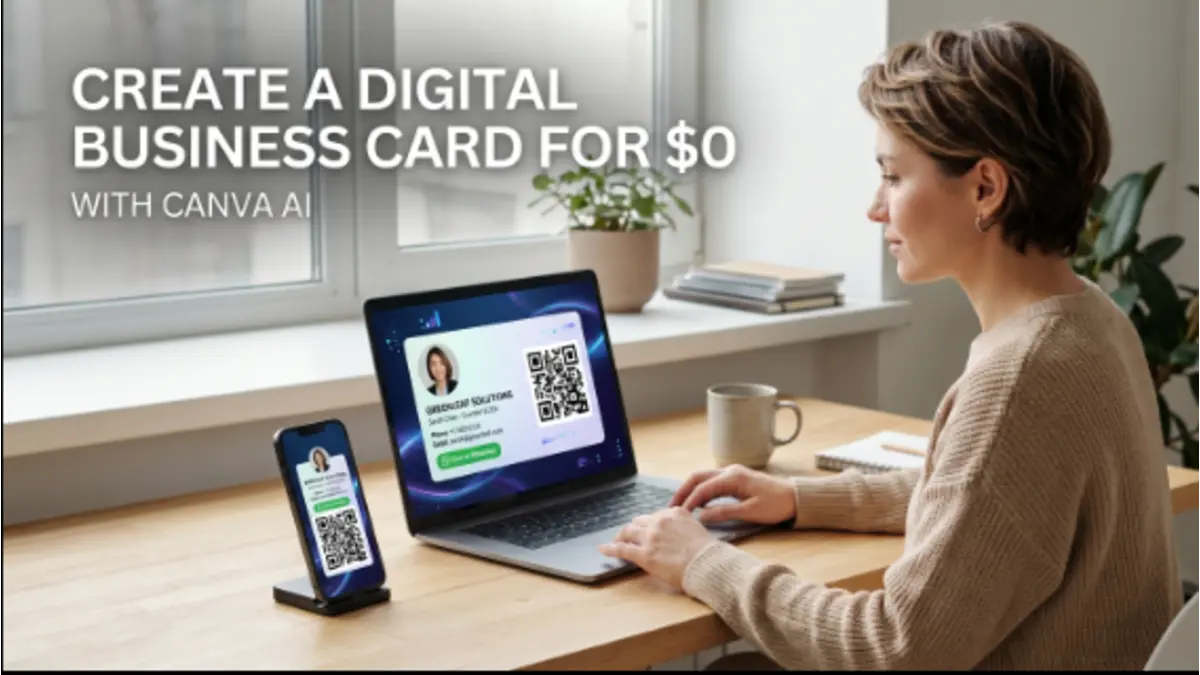
By A digital business card can give a small business a simple way to share contact details, a website, WhatsApp, social media profiles, and other important information without printing hundreds of cards.
You can create one yourself with Canva, even if you have little or no graphic design experience. Business card templates give you a starting point, while its AI writing tools can help you create the text for your card. You can also add a QR code that sends customers directly to your website, WhatsApp, booking page, or Google review link.
The basic design can be created for free if you stick to Canva’s free templates and elements. Some Canva AI features have usage limits on the Free plan, while Pro content and certain premium features require a paid plan.
Here’s how to create a professional digital business card for your small business. Before you start, I think you should read this parent guide: Small Business Growth Tips & Strategies
Why Use a Digital Business Card for a Small Business?
A traditional business card gives someone your phone number and other contact information. A digital business card can do much more.
Instead of asking someone to manually type your website address or phone number, you can give them a card with clickable information or a QR code.
For example, a local contractor could create a card containing:
- Business name
- Owner’s name
- Main services
- Phone number
- Email address
- Website
- WhatsApp link
- Google review link
- QR code
- Social media profiles
This makes the card useful after the initial meeting.
It can also become part of your small business online presence because it connects an offline interaction with your website and other online channels.
What You Need Before Creating Your Canva Business Card
Collect your business information before opening Canva.
You’ll usually need:
- Business name
- Your name
- Job title
- Phone number
- Website
- Business address or service area
- Logo
- Social media links
- WhatsApp number
- Google Business Profile review link
You don’t have to include everything.
A good digital contact card should make the most important information easy to find rather than squeezing every possible link onto one screen.
Step 1: Open Canva’s Business Card Maker
Go to Canva and search for business card.
You can also start with Canva’s business card templates:
Choose a template that has a clean layout and enough space for your contact information.
For a digital business card, don’t choose a design just because it looks attractive in the template preview.
Check whether the text will still be readable when someone opens the card on a smartphone.
A simple design with your name, business, contact details, and one clear call to action is usually enough.
Step 2: Use Canva AI to Write Your Business Card Copy
This is where Canva AI can make the process easier.
Instead of staring at a blank design wondering what to write, use Canva’s AI writing tools to create a starting point.
Canva’s Magic Write can help generate, rewrite, summarize, and improve text.
For example, you could use a prompt like:
Write a short professional business description for a local residential cleaning company in the United States. Mention house cleaning, deep cleaning, and recurring cleaning services. Keep it friendly, trustworthy, and under 30 words.
You might get something similar to:
Reliable residential cleaning for busy homeowners, including recurring, deep, and move-in cleaning services.
You can then edit the wording so it sounds like your actual business.
Don’t Let AI Write Everything
Your business card is not the place for a long AI-generated paragraph.
Use AI for the first draft, then remove unnecessary words.
A customer should be able to understand what you do within a few seconds.
Step 3: Choose a Free Business Card Template
Canva has a large collection of business card designs.
You can browse the templates here:
Canva Free Business Card Templates
Look for a design that matches your business.
For example:
Local service business:
Use a simple card with your service, phone number, and quote CTA.
Freelancer or consultant:
Give more attention to your name, profession, website, and portfolio.
Retail business:
Include your store name, website, social profile, and shopping link.
Real estate professional:
Use your name, title, phone number, website, and property-search link.
You don’t need a different card for every platform. One well-designed digital card can be shared through email, WhatsApp, social media, and your website.
Step 4: Add Your Logo, Colors, and Contact Information
Replace the template’s information with your own.
Keep your branding consistent with your website and social profiles.
For example:
Sarah Miller
Miller Home Services
Residential Cleaning & Home Care
Phone: 555-123-4567
Email: hello@millerhomeservices.com
Scan to request a free quote
This is enough.
You don’t need to add a large paragraph explaining your company.
Step 5: Add a QR Code to Your Digital Business Card
A QR code is one of the most useful features you can add to a digital business card.
Canva has a free QR code generator:
The important part is deciding where the QR code should send people.
You could link it to:
- Your website
- Contact page
- Booking page
- Online store
- Portfolio
- Google review page
- Digital menu
For a service business, Request a Quote might be more useful than simply linking to the homepage.
For a restaurant, an online menu could make more sense.
For a freelancer, your portfolio or booking page may be the better destination.
Step 6: Connect WhatsApp to Your Business Card
If your customers use WhatsApp, make contacting you as easy as possible.
Instead of simply writing your WhatsApp number, you can add a WhatsApp link to your digital business card.
For example, your call to action could say:
Message us on WhatsApp
You can also use a QR code that opens a WhatsApp conversation.
A pre-filled message can make the process even easier:
Hi, I found your digital business card and would like to learn more about your services.
The customer can scan the QR code and start the conversation without manually saving your number first.
Step 7: Add Your Google Review Link
For a local small business, customer reviews can be an important part of building trust online.
If you have a Google Business Profile, you can create a direct review link and use it as a destination for your QR code or as a clickable link on your digital card.
Your card could say:
Have you used our service?
Leave us an honest Google review.
Keep the request honest. Don’t ask customers to leave a fake review or promise a reward for a positive rating.
You can also create a separate QR code specifically for reviews if collecting reviews is an important part of your customer process.
Step 8: What About an NFC Business Card?
You may have seen digital business cards that use NFC.
NFC stands for Near Field Communication. An NFC-enabled physical card can use a small chip to open a website or digital contact page when someone taps it with a compatible smartphone.
You don’t need NFC to create a Canva digital business card.
Think of them as two different layers:
Canva: Creates the visual design.
QR code: Gives people a scannable way to access your information.
NFC: Gives people a tap-to-open option when used with compatible hardware.
If you’re starting with no budget, a QR code is the easier option. You can consider an NFC card later if you regularly attend networking events or meet customers in person.
3 Free Canva Template Types to Use
Instead of overcomplicating the design, start with one of these three approaches.
1. QR Code Business Card
Canva QR Code Business Card Templates
Best for local businesses that want customers to take one specific action, such as requesting a quote, visiting a website, or contacting them on WhatsApp.
2. Social Media Business Card
Canva Social Media Business Card Templates
Useful for creators, freelancers, retailers, and businesses that receive customers through social media.
3. Standard Business Card
The simplest option for consultants, contractors, professionals, and local businesses that mainly need a clean digital contact card.
Important: Canva’s template library contains both free and Pro content. If you’re trying to create the card at no cost, select free templates and free design elements rather than premium assets.
How Much Does a Canva Digital Business Card Cost?
You can make the basic digital business card for $0 if you use Canva’s free resources.
Here’s what that can look like:
| Feature | Possible with Canva Free? |
|---|---|
| Business card design | Yes |
| Free templates | Yes |
| Basic editing | Yes |
| QR code | Yes |
| AI writing assistance | Yes, with Free-plan limits |
| Pro templates/elements | No |
| Printing | Extra cost |
| Physical NFC card | Usually extra cost |
You don’t need to buy printed cards or an NFC card to start.
For a small business with no marketing budget, a free Canva design plus a QR code can be enough to create a useful digital contact card.
How to Share Your Digital Business Card
Once your card is finished, make it easy for people to access it.
You can share it through:
- Text messages
- Your website
- Your email signature
If you’re meeting someone in person, you can show the QR code on your phone.
If you’re emailing a potential customer, you can include the digital card or a link to the relevant contact page.
The goal is simple: don’t make people search for your information after meeting you.
How to Make Your Digital Business Card More Useful
A digital business card should have one obvious next step.
Think about what you want the customer to do.
For a plumber Scan to request a quote
For a photographer: Scan to view portfolio
For a restaurant: Scan to view menu
For a consultant: Scan to book a call
For a real estate agent: Scan to view available properties
For a retail store: Scan to shop online
This turns your business card from a simple collection of contact details into a small lead-generation tool.
Digital Business Card Design Tips
Keep the design simple.
Use a readable font and enough contrast between the text and background.
Don’t use five different fonts.
Don’t put tiny social media icons everywhere.
Don’t cover half the card with decorative graphics.
And always test every link and QR code before sharing the card.
Open the design on your phone and check:
- Can you read the phone number?
- Is the QR code easy to scan?
- Does the website open correctly?
- Does the WhatsApp link work?
- Does the Google review link go to the correct place?
- Are all names and numbers correct?
A five-minute test can prevent an embarrassing mistake when you send the card to a potential customer.
Can You Turn a Canva Card Into a Real Digital Contact Card?
Yes, but there is an important distinction.
A Canva design is primarily a visual business card.
A dedicated digital business card platform may offer additional features such as a hosted profile, contact saving, analytics, NFC support, or automatic updates.
For a small business starting with no budget, however, you can keep things simple.
Create the Canva design, add your important links, use a QR code, and direct customers to the online page or contact method that matters most.
You can always move to a dedicated digital business card platform later.
FAQs
Can Canva AI make a business card?
Yes, it can help with parts of the creation process, including generating and improving business copy. You still need to choose or customise the design and verify your business information.
Is a digital business card better than a printed business card?
They serve different purposes. A printed card is useful for traditional networking, while a digital card can make websites, WhatsApp, reviews, booking pages, and other online destinations immediately accessible. Many businesses can use both.
Final Takeaway
You don’t need a designer, expensive software, or a large marketing budget to create a digital business card.
Start with a free Canva business card template. Use Canva AI to help write a short description and call to action, add your real contact information, create a QR code, and connect it to the action that matters most to your business.
For many small businesses, that might be WhatsApp, a website, a booking page, or a Google review link.
The best digital business card isn’t the one with the most information. It’s the one that makes the next step obvious and easy. If you want more info about creating templates on canva, you should read How to make money with Canva, in the highlighted guide, all problems are discussed with their solutions.