
 By
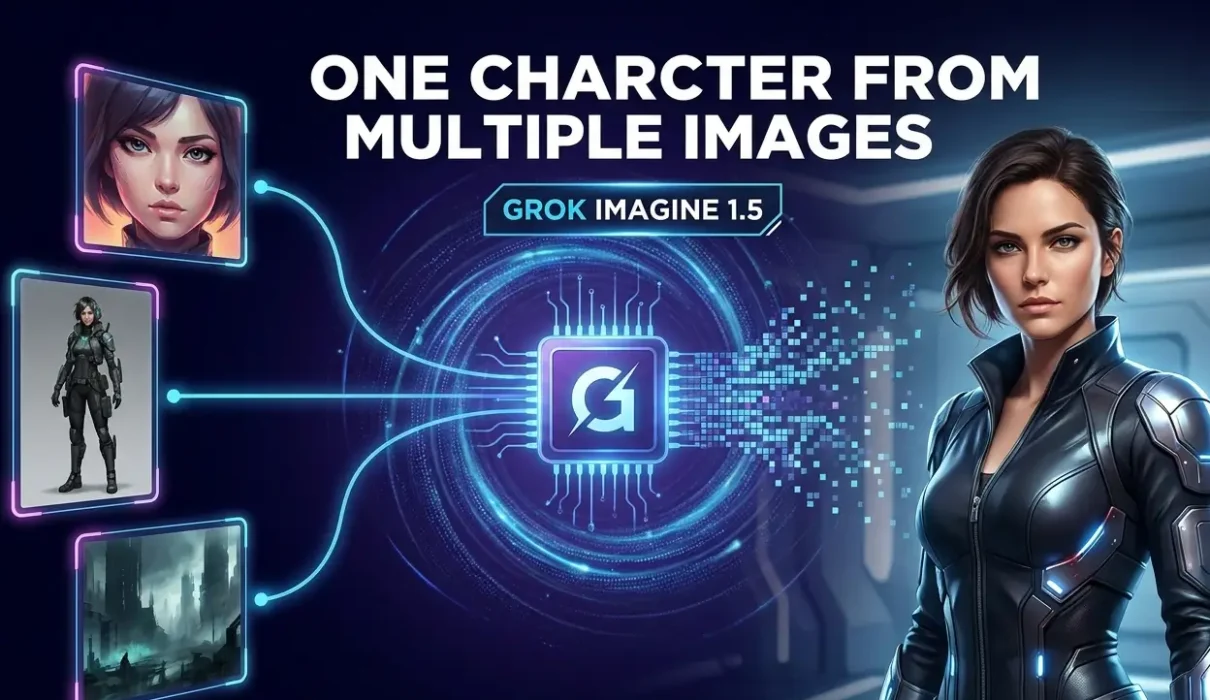
By If you want Grok to generate a consistent character, product, or scene using multiple images, the Grok Imagine Multi Reference Feature is exactly what you need. It lets you upload several reference images in a single prompt. According to the official xAI Release Notes, Grok 1.5’s multi-reference feature allows creators to lock up to 5 visual inputs simultaneously for consistent character rendering. while keeping style, appearance, and identity consistent.
This feature is part of the larger Grok Imagine 1.5 update. If you want a complete overview of every new capability, including voice consistency and 1080p image generation, read our parent guide, “xAI Launches Grok Imagine 1.5: Features Voice Consistency, Multi-References & 1080p Support.”
What Is Grok Imagine Multi Reference Feature?
The Grok Imagine Multi Reference Feature allows Grok Imagine 1.5 to analyze several uploaded images before generating a new one. Instead of relying on a single reference, the AI integrates visual information from multiple sources and produces a consistent output.
For example, you can upload:
- One image for a character’s face
- Another showing their outfit
- A third with the preferred hairstyle
- A fourth demonstrating the lighting or art style
Grok then uses those references together when creating the final image.
That makes the feature especially useful for creators who want visual consistency across multiple projects rather than starting from scratch each time.
Why Grok Imagine 1.5 Multi Reference Matters
According to computer vision research on arXiv, using multiple image prompts helps AI maintain visual consistency and prevents face or style drifting during generation. Single-image references work well for simple edits, but they often struggle when important details are missing.
During testing, this becomes obvious. A portrait may capture the correct face but lose the clothing style. Another image might preserve the outfit but completely change the hairstyle.
Grok Imagine 1.5 Multi Reference solves much of this by giving the model more context before generation begins.
Instead of guessing missing details, it has multiple visual sources to learn from.
The result is usually more reliable character consistency, fewer prompt revisions, and less time spent regenerating images.
How to Use Grok Imagine Multi Reference Feature
Using the feature is straightforward once you know how the references should work together.
Step 1: Open Grok Imagine
Launch Grok and switch to the Imagine image generation mode. Make sure you’re using the version that supports multiple reference uploads.
Step 2: Upload Multiple Reference Images
Choose all the images you want Grok to learn from.
Each image should have a clear purpose. For example:
- Reference 1: Face and facial expression
- Reference 2: Clothing
- Reference 3: Hair style
- Reference 4: Body pose
- Reference 5: Art style or lighting
Avoid uploading unrelated images. The more focused your references are, the easier it is for the AI to understand your intent.
Step 3: Write a Clear Prompt
Don’t assume the images explain everything.
Describe exactly what you want Grok to create.
For example:
“Create the same female character using the uploaded references. Keep the facial features, white jacket, black jeans, and curly hair consistent. Place her walking through a rainy Tokyo street at night with cinematic lighting.”
Clear prompts still matter, even with multiple references.
Step 4: Generate the Image
Submit the prompt and let Grok process every uploaded reference.
Depending on the complexity of your request, generation may take slightly longer than a standard image prompt.
Step 5: Refine If Needed
If one detail isn’t preserved correctly, don’t replace every reference-Instead, improve the prompt or swap only the image causing confusion.
In my experience, smaller adjustments usually yield better results than rebuilding the entire prompt from scratch.
Best Practices for Grok AI Visual Consistency
Good reference images make a much bigger difference than many people expect.
Use high-quality photos without heavy filters or compression. If the face is blurry in one reference and crystal clear in another, Grok may prioritize the sharper image.
Lighting also matters.
If one image is taken outdoors during daylight while another uses dramatic studio lighting, the model has to reconcile conflicting information. Keeping references visually similar often produces cleaner results.
I also recommend assigning one purpose to each image rather than uploading several nearly identical photos. That gives Grok clearer instructions without adding unnecessary visual noise.
Real-World Uses of Grok Multi Image Prompting
The Grok Multi Image Prompting workflow fits many creative projects.
Content creators can maintain the same AI influencer across hundreds of social posts.
Game developers can generate concept art using the same character from different camera angles.
Marketing teams can preserve product appearance while changing backgrounds for seasonal campaigns.
Comic artists can keep facial identity consistent across multiple scenes without redrawing every detail.
Even small businesses can use it to generate promotional graphics where branding elements remain visually consistent throughout a campaign.
Using Grok Imagine Character Reference Effectively
The Grok Imagine Character Reference system works best when identity is the highest priority.
Instead of uploading random screenshots, build a small reference library for every recurring character.
Include one front-facing portrait, one side profile, one full-body image, and one showing clothing details.
Over time, this approach makes it much easier to recreate the same character in different environments without major visual drift.
If you’re building stories, web comics, YouTube thumbnails, or marketing assets, that consistency becomes incredibly valuable.
Common Problems and Simple Fixes
Sometimes Grok combines details differently than expected.
If the hairstyle changes, make that requirement more specific in your prompt.
If clothing isn’t preserved, use a cleaner clothing reference with fewer distractions in the background.
When facial identity shifts too much, replace low-quality references with sharper images taken from similar angles.
In most cases, improving the references works better than making the prompt dramatically longer.
Frequently Asked Questions
Is Grok Imagine Multi Reference available to everyone?
Availability depends on your Grok version and account access. As xAI expands Grok Imagine 1.5, more users should receive support for its advanced image-generation features.
How many reference images can I upload?
The supported number may vary as xAI updates the platform. Check your current Grok interface for the latest upload limit.
Does Multi Reference guarantee perfect consistency?
No. It significantly improves consistency, but results still depend on image quality, prompt clarity, and how compatible your references are with one another.
Make the Most of Multi References
The Grok Imagine Multi Reference Feature is one of the most practical additions in Grok Imagine 1.5 because it reduces guesswork. Instead of asking the AI to imagine missing details, you provide them directly through carefully chosen reference images.
Once you build a habit of organizing strong references and writing focused prompts, you’ll spend less time regenerating images and more time creating consistent characters, products, and visual stories. If you want to sync your visual characters with AI audio, check out our guide on Grok Imagine Voice Consistency.